
Accessible Headings
Headings communicate the organization of the content on the page. Web browsers, plug-ins, and assistive technologies can use them to provide in-page navigation.
Quick Reference
- Never use headings for text formatting or styling
- Use descriptive words for your headings
- Headings become more specific as you descend in heading order (H1 - H6)
- Headings use linear order, but can break this order when you need to create a new section of content
- H1, H2, H3 can reverse to H2 if you are creating a new section of content
- Never use empty headings to create space on your web page
- Do not skip heading levels
- Do not use large font sizes for regular text
- Screen readers may mistake large font for a heading
Nested Headers (aka: Header Hierarchy)
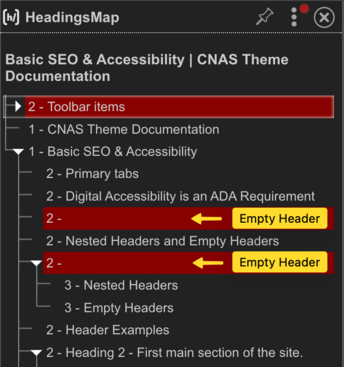
Headings organize a webpage's content by letting users get a sense of the page’s organization and structure, making it easier to scan the page and find what they're looking for. Plus, using headings is especially helpful for users with cognitive disabilities.
People using Screen Readers rely on the headings as an outline to help them navigate the page, and this is the reason it is important to nest your headers - also known as "Header Hierarchy". Check your pages as you work to make sure your Headers are properly nested and that there aren't any empty Headers. Any normal/paragraph text is invisible to Screen Readers. Choose wisely to make your outline informative.
Empty Headers
Say you want to include some space above or below a header. Intuitively, you would place your cursor at the start or end of the header and hit return on your keyboard. This creates a new line, but behind the scenes, Drupal assigns it the same header value. If you look at the source code you will see this:
<h2> </h2>
<h2>Nested Headers and empty Headers</h2>
<h2> </h2>
Empty headers appear on screen readers, with no information inside, and can be very frustrating to someone trying to navigate a site using a screen reader.
Please make sure to use empty paragraphs if you want space above or below a header: <p </p>
Header Examples
Heading 2 - First main section of the site.
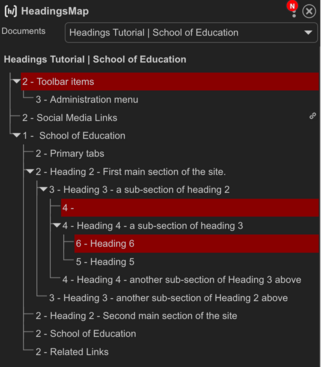
Normal content (as named in the Format dropdown list in the editing toolbar), is otherwise known as a paragraph. Anything not assigned a heading size will be a paragraph. Paragraphs are invisible to screen readers. Only the headings are visible to screen readers. You want your headings to be nested, like an outline. Do not skip heading levels (for example, do not skip from <h2> to <h5>). It is permissible to skip headings in the opposite direction if the outline of the page calls for it (for example, from <h5> to <h2>).
Heading 3 - a sub-section of heading 2
A paragraph under Heading 3, not assigned any heading, this will be invisible to screen readers until explicitly selected to be read.
Heading 4 - a sub-section of heading 3
A paragraph under Heading 4, not assigned any heading, this will be invisible to screen readers until explicitly selected to be read.
Heading 6
This is done incorrectly for demonstration purposes. You should never skip numbers. HeadingsMap will show you errors in red. Note, the Social Media Links are not something you can change, they come with the Drupal template your site uses. But, you can change your Heading 6 to a Heading 5 and correct the nesting error.
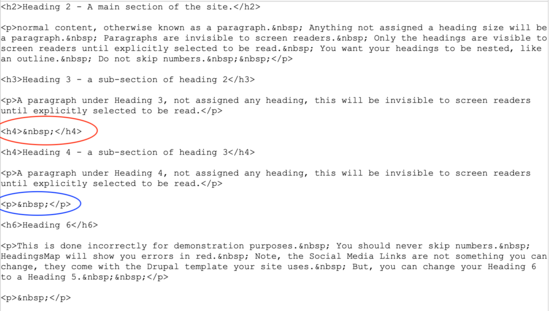
Notice the empty Heading 4 <h4> in Screenshot #1 (The HTML character entity " " renders a space on a browser). This occurs if your cursor is in front of text assigned a heading and you decide to add a line above it. People relying on screen readers will come across that and pause, expecting content that isn't there. Please make sure these don't exist on your pages. The correct code to use is <p> </p> (paragraphs are invisible to screen readers). You can see the error circled in red, and the correct code to use circled in blue in the screenshot to the left.
Common Misuses of Heading Levels
Formatting Text Using Headings
It is a common error that web editors use headings to format text because they have special styling that increases font size and the boldness of the text. Never use heading/title options to format your text. Instead, use appropriate CSS to style text when your design requires altering the base styling.
Avoid Skipping Heading Levels
Skipping heading levels should be avoided (example: H1 directly to H3). People using screen readers often rely on headings for in-page navigating, so if the structure is not hierarchical, they may not understand the relationship of your content areas.
Large Font Sizes
It is possible for screen readers to view regular text that has a large font size as a heading. Avoid using large font sizes on text that is not a heading.
Using Empty Headings to Create Space Between Content
Some editors use headings as a way to create space between content blocks. This causes your site to be in violation of compliance codes within Web Content Accessibility Guidelines (WCAG) AA standards and should be avoided. Use the separator content type or create a new section with the correct title instead.
The headingsMap tool
This invaluable free tool is an extension available for Chrome and Firefox. It shows nested Header and empty Header errors. Note that if you are logged in, the Admin tabs will appear in the headingsMap. You can ignore all errors above the title of your page. When you save your page, check it with headingsMap to know you are making your pages accessible.
Early Wins: Start with these top issues


