
Include Alternative Text (Alt Text) in every image and iframe embed
Preparing your images for the web - video tutorial
When you upload a new image, take the time to enter thoughtful Alternative Text (Alt Text) and a descriptive image name. Alternative text is not a caption. Appropriate alternate text is a short description of an image that a screen reader can access and "read" to the user. Without alt text, the visually disabled user will miss the image and its meaning.
The image name is also important for accessibility as it is automatically used as the title of the image, and is also important for you to help you find the image later. Do not use the words "image", "photo", or "picture" in your Alt Text, as this creates an accessibility issue.
If you use the Bulk Upload feature for images, Drupal automatically uses the file name as the name of the image:
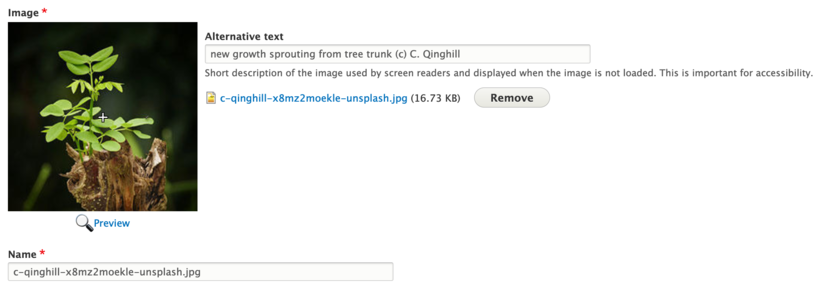
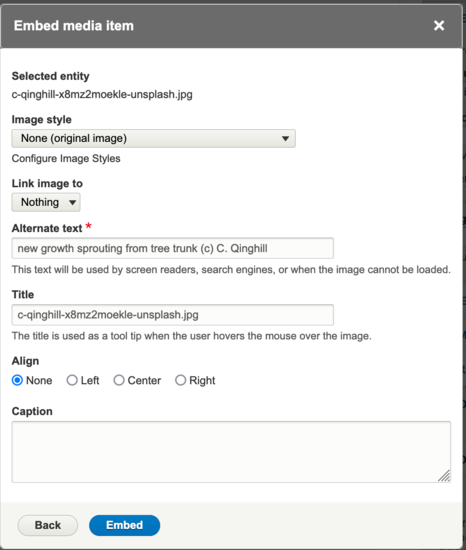
When you add an image to your page, the filename appears as the title, and search engines will penalize you for titles that include file extensions like ".jpg" or ".png". Plus, it will be hard to find your image using a keyword. There is no descriptive information in the filename to indicate what the image is.
If an image is purely decorative and has no importance to the content (an example is the Ray of Light icon used in UCR Branding), then place 2 double quotes in the Alternative Text box. Screen readers will recognize it and ignore it. (Example: "")
WebAIM offers a helpful article on how to create good alternative text.
iFrames
If you embed an inline frame (iFrame), always include an Alt Tag or a Title Tag. IFrames are used when you embed profiles from profiles.ucr.edu, when you embed a Google Calendar, and when you embed a YouTube video (although it is better practice to use Drupal's Video Content type for videos because then they are responsive to screen size).
Example of Profiles embed code (the title "Profiles" is added automatically, but you can edit it to be more specific if you want):
<iframe height="100%" id="pe-34b9264a-cac3-52cc-3ec6-da4f0d4325" src="https://profiles.ucr.edu/app/embed?groupId=20959&profilePictureMode=always&viewProfileButtonMode=always&showAlphaLinks=false&showFilter=false&showTitle=false&affiliationFilter=All&viewProfilesMode=cards&enableViewModeButton=false&disableSocialLinks=false&excludeStudentEmployees=false&excludeSecondaryDepartmentEmployees=false&customCssUrl=https%3A%2F%2Fcnas.ucr.edu%2Fthemes%2Fcustom%2Fucr_cnas_1%2Fcss%2Fcnas-profiles.css" title="Profiles" width="100%"></iframe>
Example of Google Calendar embed code: (titles are NOT automatically included, please add one manually through the source code)
<iframe frameborder="0" height="600" scrolling="no" src="https://calendar.google.com/calendar/embed?src=ucr.edu_5bok1scp193vhu4p7u7j40%40group.calendar.google.com&ctz=America%2FLos_Angeles" style="border: 0" width="800" title="Event Calendar"></iframe>
The Alt Decision Tree tool
This decision tree describes how to use the alt attribute of the <img> element in various situations. For some types of images, there are alternative approaches, such as using CSS background images for decorative images or web fonts instead of images of text.
Resources
UCR Accessibility Images and Graphics
Images and graphics are an essential piece of digital communication, and there are a few steps we can all take to ensure that the content we create can be understood by all community members.
Learn more about Accessibility for Images and Graphics
Early Wins: Start with these top issues


